
Skip to content
View in the app

A better way to browse. Learn more.

Ford Owners Club - Ford Forums

A full-screen app on your home screen with push notifications, badges and more.

To install this app on iOS and iPadOS
  1. Tap the Share icon in Safari
  2. Scroll the menu and tap Add to Home Screen.
  3. Tap Add in the top-right corner.
To install this app on Android
  1. Tap the 3-dot menu (⋮) in the top-right corner of the browser.
  2. Tap Add to Home screen or Install app.
  3. Confirm by tapping Install.


Join the Independent Ford Owners' Club

Our community has been built by enthusiasts, for enthusiasts, and proudly run by Ford owners' for over 18 years. As an independent, non-official club, everything you’ll find here, advice, support, and opinions, comes directly from members with genuine Ford ownership experience.

Join our friendly community... it's Free!


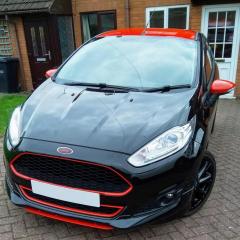
Replacing the wing mirror casing on a Fiesta Black edition
Featured Replies

Hi all I'm looking for some  advice.

Through a combination of poor judgement on my part and bad luck I've managed to smash the painted casing and indicator lens on my passenger side wing mirror, because I lost the lens Ford said they'd have replace the whole thing and quoted me £280 for the privilege which I'm not going to do as I can find a replacement casing and lens online for less than £50.

My questions are

1. Does anyone know what shade of red is used on the wing mirrors and roof of the black edition fiestas, I can find the paint code for the black easy enough but there seems to be no information on the red. Failing that if anyone has the red edition I'd be prepared to try the shade of red those come in.

2. I can find cases both primed and ready for painting or already painted, personally I'd rather paint it myself as I'm more confident in my ability to match the colour than an online seller, but do any of you have experience doing this? Is the painting easy enough to do yourself and get a good loooking finish or am I better off putting my faith in the hands of a 'professional' (or some cases semi-professional)?

Thanks in advance for the help,

Adam

Edited by wolfenstolme
missed thank you and sign off, it never hurts to be polite :)


Hi,


I have the Red Edition and I have some of the genuine Ford touch up paint here in front of me. It's Ford Race Red and on the container is a code..... 1 771 687 . I don't know whether that's just a Ford part number or if it's what you need. Also attached is a picture of the car label from the door pillar if that tells you the paint code for the red.

Car label.jpg

  • Author

Nice one Matt,

That's all the information I could hope for, race red was what I was leaning towards but the other potential reds caused me to doubt myself so it's great to have something to back that up.

Pleased I could help. I forgot to mention that the Race Red touch up paint I bought from Ford also came with another bottle called clearcoat. I believe it's a clear lacquer that goes on over the paint. That's common on metallic paint but was I surprised to get clear lacquer with Race Red as it's not metallic. Since i was only touching up a small scratch I actually didn't use the clearcoat that came with the paint. If you are spraying a part which is going to be clearly visible then the clearcoat may be needed to get a good finish.

  • Author

More good advice thanks again Matt you've probably saved me a fair amount of frustration there over it not looking quite right.

Latest Deals

Ford UK Shop for genuine Ford parts & accessories

Disclaimer: As the club is an eBay Partner, The club may be compensated if you make a purchase via the club

Join the conversation

You can post now and register later. If you have an account, sign in now to post with your account.

Guest
Reply to this topic...

The "Digestive"


Background Picker
Customize Layout

Account

Navigation

Search

Search

Configure browser push notifications

Chrome (Android)
  1. Tap the lock icon next to the address bar.
  2. Tap Permissions → Notifications.
  3. Adjust your preference.
Chrome (Desktop)
  1. Click the padlock icon in the address bar.
  2. Select Site settings.
  3. Find Notifications and adjust your preference.
